 Schubird
Feature guide
Give every piece a memory
A repertoire item is more than a title in a list. It is the home for what your teacher said, what you tried, what improved, and what you want to do next.
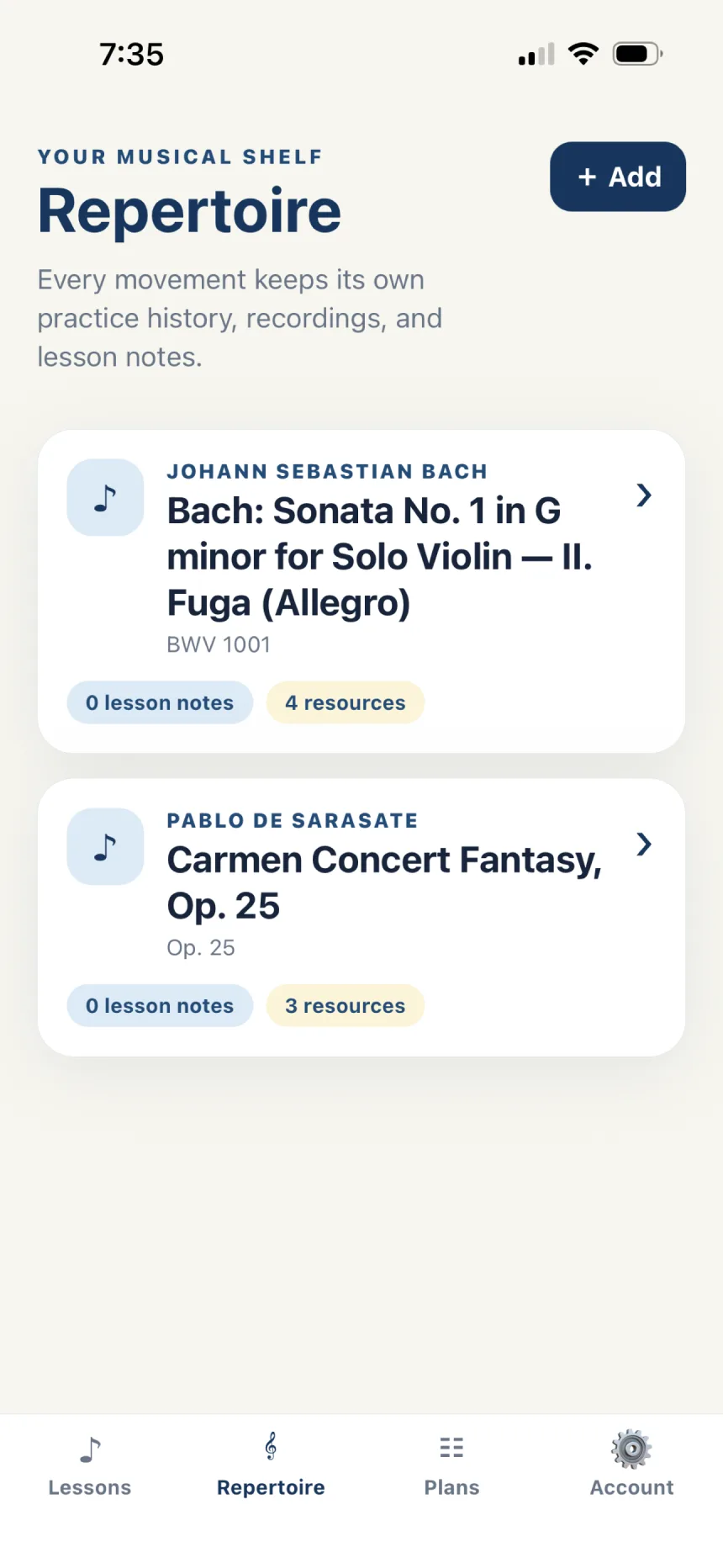
Add repertoire
- Open Repertoire and choose Add.
- Describe the piece or movement in your own words.
- Continue the short conversation until Schubird offers a repertoire card.
- Review the title, composer, catalog details, and suggested resources, then confirm.
Create separate entries for individual movements when you want distinct lesson histories and plans.
Use the piece workspace
Open a repertoire card to see its linked lesson notes, past lessons, saved recordings or score links, progress updates, and next steps. This is the context Schubird uses when it helps you think about the piece.
Add a recording or resource
Use the resource area to save a YouTube performance or another useful link. Give it a clear label so it remains recognizable later. Scores and reference links suggested when you add repertoire also live here.
Have a practice discussion
- Choose Open practice assistant from the piece.
- Tell Schubird what you practiced, what changed, what remains difficult, or ask about the saved context.
- Be concrete: name the passage, technique, musical goal, or result.
- Review the conversation and preserve the accomplishment and next step when prompted.
Review practice history
The History view separates what you accomplished from what you planned to do next. Use it before a session to remember your last stopping point, and after a session to leave a useful handoff to your future self.
Follow the trail back to a lesson
Linked notes retain their lesson date and timestamp. Open a past lesson from the piece workspace to review the surrounding teaching context and play the relevant moment again.