 Schubird
Feature guide
Turn a lesson into notes you can use
Schubird keeps the recording, the teaching point, and the practice action together, so you can move from “I remember we discussed this” to the exact moment that matters.
Create lesson notes
From YouTube
- Open Lessons and choose to add a new lesson.
- Paste a public or unlisted YouTube link whose captions are available.
- Choose Make my notes and keep Schubird open while the lesson is prepared.
From a recording on iPhone or iPad
Choose an audio or video file from Files, or select a video from Photos. Keep Schubird open and the device unlocked during preparation. A video stored in iCloud may need to download first. Local recording import is available in the iPhone and iPad app; the web app can still read the resulting notes.
Review the result
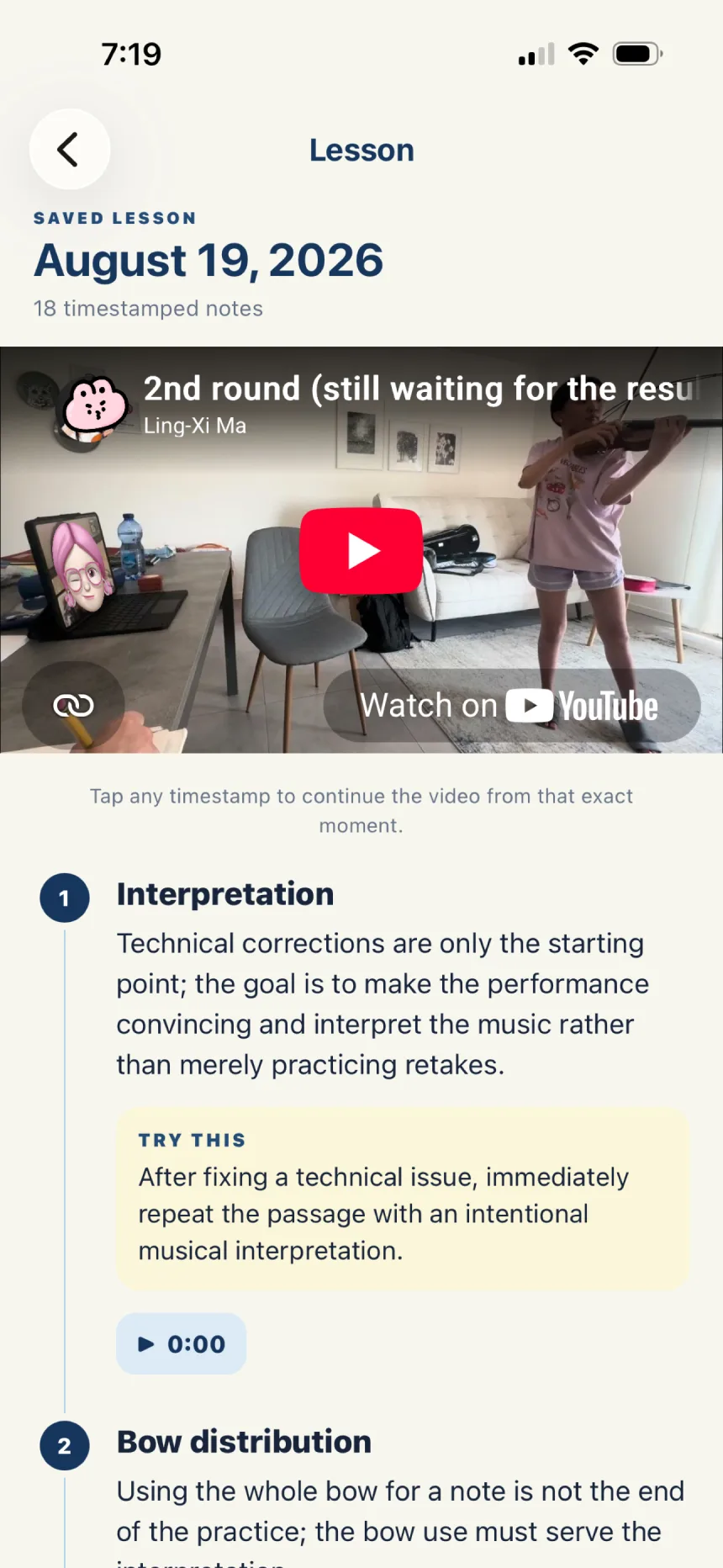
The Timeline keeps notes in lesson order. Each item includes a topic, the teaching point, a practical suggestion, and a timestamp. Choose the timestamp to return to that moment. Practice themes groups ideas that recur across the lesson.
Connect notes to repertoire
- Set the lesson date.
- Use a time range to choose the notes belonging to a piece or movement.
- Select the repertoire item and apply the range. If a recording covers several pieces, add another range for each one.
- Review the links and save the lesson.
Linked notes appear inside the repertoire item, where the practice assistant can use them as context. You can edit links later from the saved lesson.
Return to a saved lesson
Open the lesson archive and choose a date. You can review the video and notes, move between Timeline and Practice themes, add personal remarks, and reopen the exact teaching moment. For a recording imported from an iPhone or iPad, playback stays linked on that device; the web app shows the notes even when the original local media is unavailable there.